

sRGB, Adobe RGB, DCI-P3: Which Do You Need?
Wide-gamut monitors cost more, and most people don’t need one. Here is how to choose between sRGB, Adobe RGB, and DCI-P3 based on what you actually produce.
What a color space is
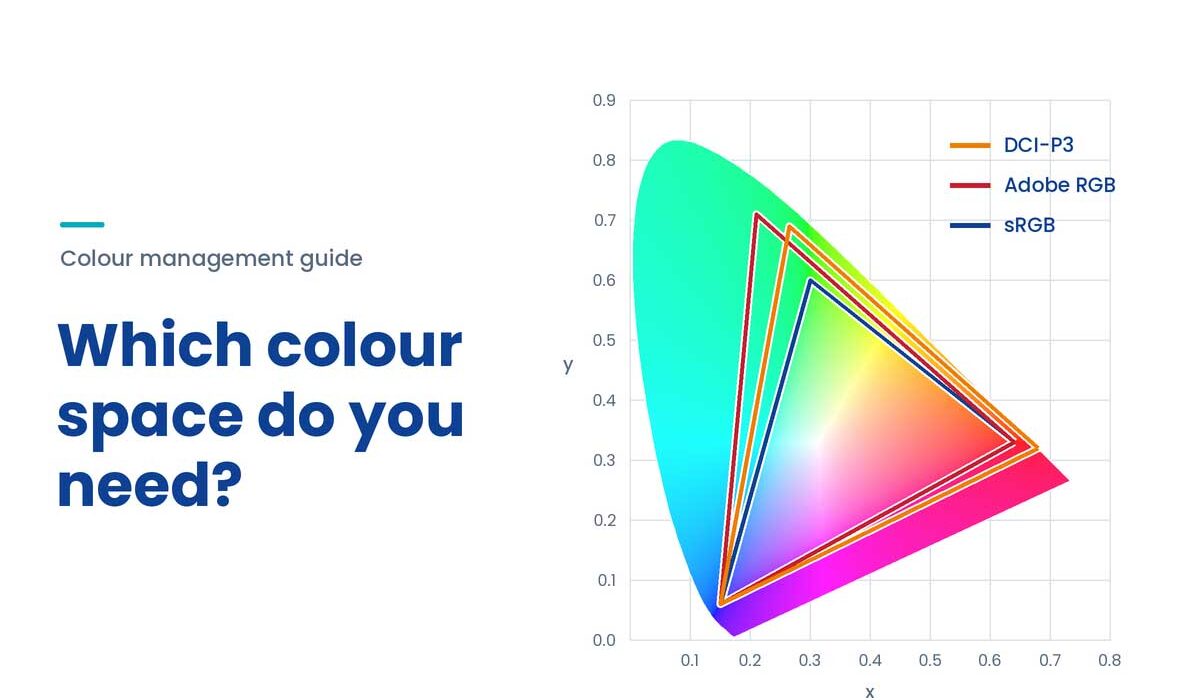
A color space defines the range of colors a piece of content is meant to use, and a monitor’s coverage tells you how much of that range it can show.sRGB: the default for the screen
sRGB is the standard behind most websites, social media, office software, and everyday photos. If your audience will see your work on ordinary screens, you need sRGB to be accurate. EIZO’s own guidance for web content is to embed an sRGB profile in your images.Adobe RGB: when the destination is print
Adobe RGB was designed with printing in mind, and its extra range is mostly in greens and cyans. It suits photographers and print studios who need to preview colors that sRGB cannot show. If you never send work to print, you gain very little from it.DCI-P3: when the destination is video and HDR
DCI-P3 comes from digital cinema and is a standard target for video, HDR, and many modern devices. One detail to know: the P3 modes on many displays follow Apple’s Display P3 variant rather than the original cinema specification, so confirm which one your workflow calls for.Which one do you need?
| Your Work | Work in |
|---|---|
| Web, e-commerce, social, documents | sRGB |
| Photography and print production | Adobe RGB (plus sRGB check) |
| Video, motion graphics, HDR | DCI-P3 (plus sRGB check) |
| Mixed work for several outputs | A monitor with accurate switchable modes |
One caution about wide gamut
A wide-gamut monitor shows colors accurately only when your software is color-managed. In applications that ignore color profiles, sRGB content can look oversaturated. That is why a calibration-capable monitor and a managed workflow matter more than the gamut number alone.